Documentation

Help for the billing work you do every week.

The easyTimi documentation hub is a practical product manual for setup, customers, invoices, payments, timekeeping, reporting, and country-specific e-invoicing readiness.

Each section explains when to use the workflow, what to prepare, the normal steps, and the first checks to make when something does not behave as expected.

Online product manual

Use these sections as the first stop for product help. They are organized by workflow and illustrated with current product screenshots from the live app.

Start

Getting started

Set up the account foundation you need before you issue the first invoice.
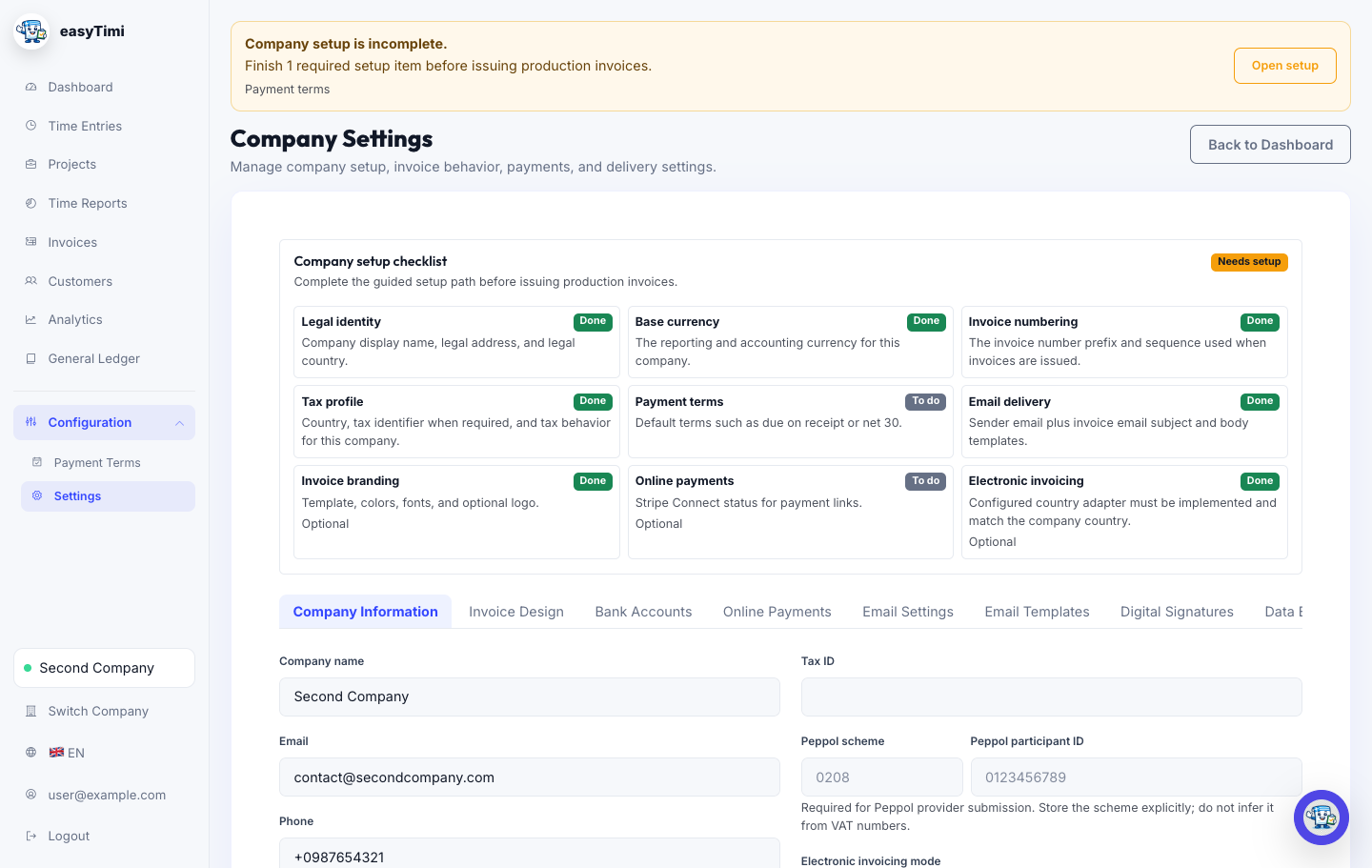
easyTimi settings screen with company, invoice, payment, and email configuration tabs

When to use this

Use this section before the first production invoice, after adding a new company, or whenever invoice identity, payment terms, delivery, or compliance settings change.

Workflow

  1. Sign in and confirm the active company in the sidebar.
  2. Open Configuration and complete required setup items.
  3. Review legal identity, country, base currency, invoice numbering, payment terms, and email delivery.
  4. Add payment instructions and connect Stripe only after the account is ready for live payments.
  5. Send a test invoice to an internal recipient before relying on production delivery.

Check before moving on

  • Company legal name, address, tax ID, and country are correct.
  • Invoice numbering and default payment terms match the accounting process.
  • Email sender details and payment instructions are ready for customers.
  • Country-specific e-invoicing fields are reviewed with an accountant where required.

Common fixes

  • If a setup banner remains visible, open setup and complete the listed required item.
  • If invoice sending is blocked, check company identity, payment terms, and email delivery configuration first.

Related guides

Create and send your first invoice

Set company details, choose a customer, add line items, review the PDF, and send with confidence.

Read the first-invoice guide

Check company settings

Review legal identity, country, base currency, invoice numbering, branding, payment terms, and email setup.

Open settings after sign in

Bill

Invoices and customers

Keep the invoice record clean from customer setup through issue, delivery, and payment tracking.
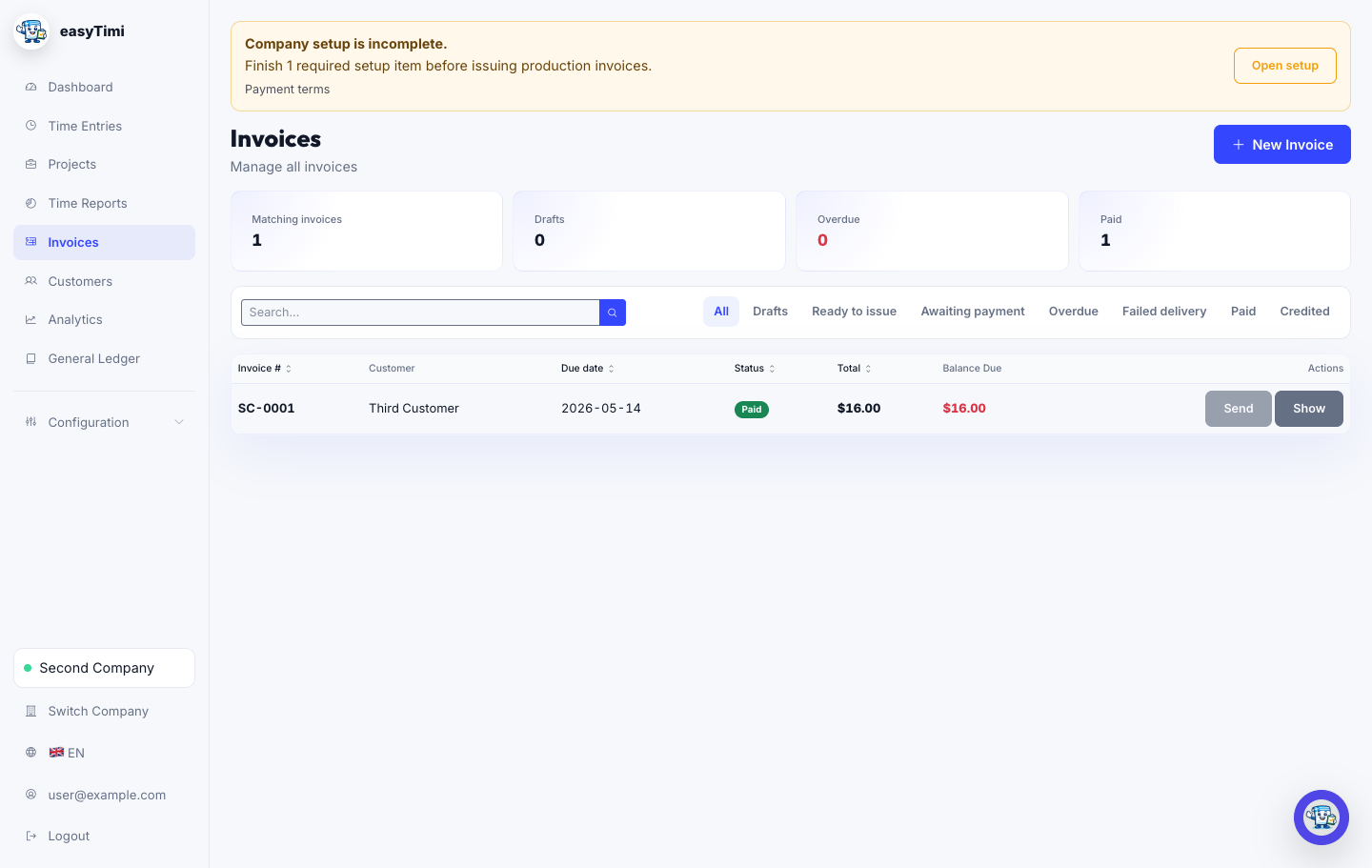
easyTimi invoices screen showing invoice records, statuses, and billing actions
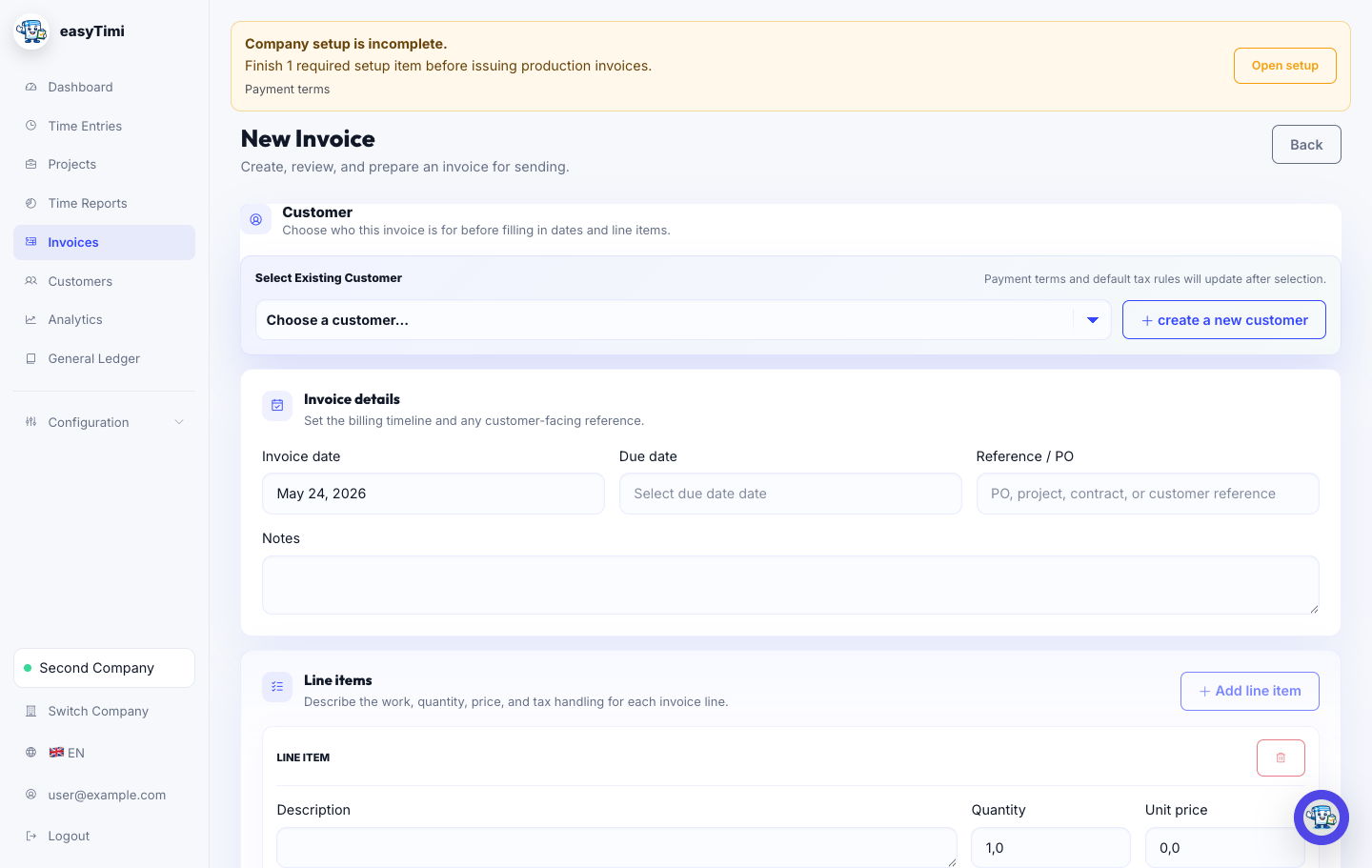
easyTimi new invoice form with customer selection, invoice details, and line items

When to use this

Use this section when you need to add a customer, create a draft, check invoice content, send an invoice, or correct an issued invoice.

Workflow

  1. Create or confirm the customer record.
  2. Open Invoices and choose New Invoice.
  3. Select the customer, enter invoice dates and references, and add clear line items.
  4. Review currency, tax treatment, totals, notes, and payment instructions.
  5. Save the draft, review the invoice, then issue and send when final.
  6. Use invoice activity to confirm delivery, payment events, reminders, and correction history.

Check before moving on

  • Customer legal name, billing email, country, and tax fields are current.
  • Line item descriptions can be understood without a follow-up email.
  • Tax label, tax reason, and service period are recorded when needed.
  • Invoice totals, due date, and payment instructions match the customer agreement.

Common fixes

  • If the customer is missing, create the customer from Customers or from the New Invoice form.
  • If totals look wrong, review quantity, unit price, currency, tax preset, and imported time entries.
  • If an issued invoice needs correction, use the appropriate void or credit note workflow instead of editing historical records casually.

Related guides

Professional invoice checklist

Confirm invoice numbers, dates, seller and buyer identity, line-item detail, tax labels, totals, and payment instructions.

Read the invoice checklist

Structure customers and companies

Decide when one company workspace is enough and when separate legal sellers, team members, or customer records are cleaner.

Read the workspace guide

Paid

Payments and follow-up

Shorten the distance between a sent invoice and a reconciled payment.
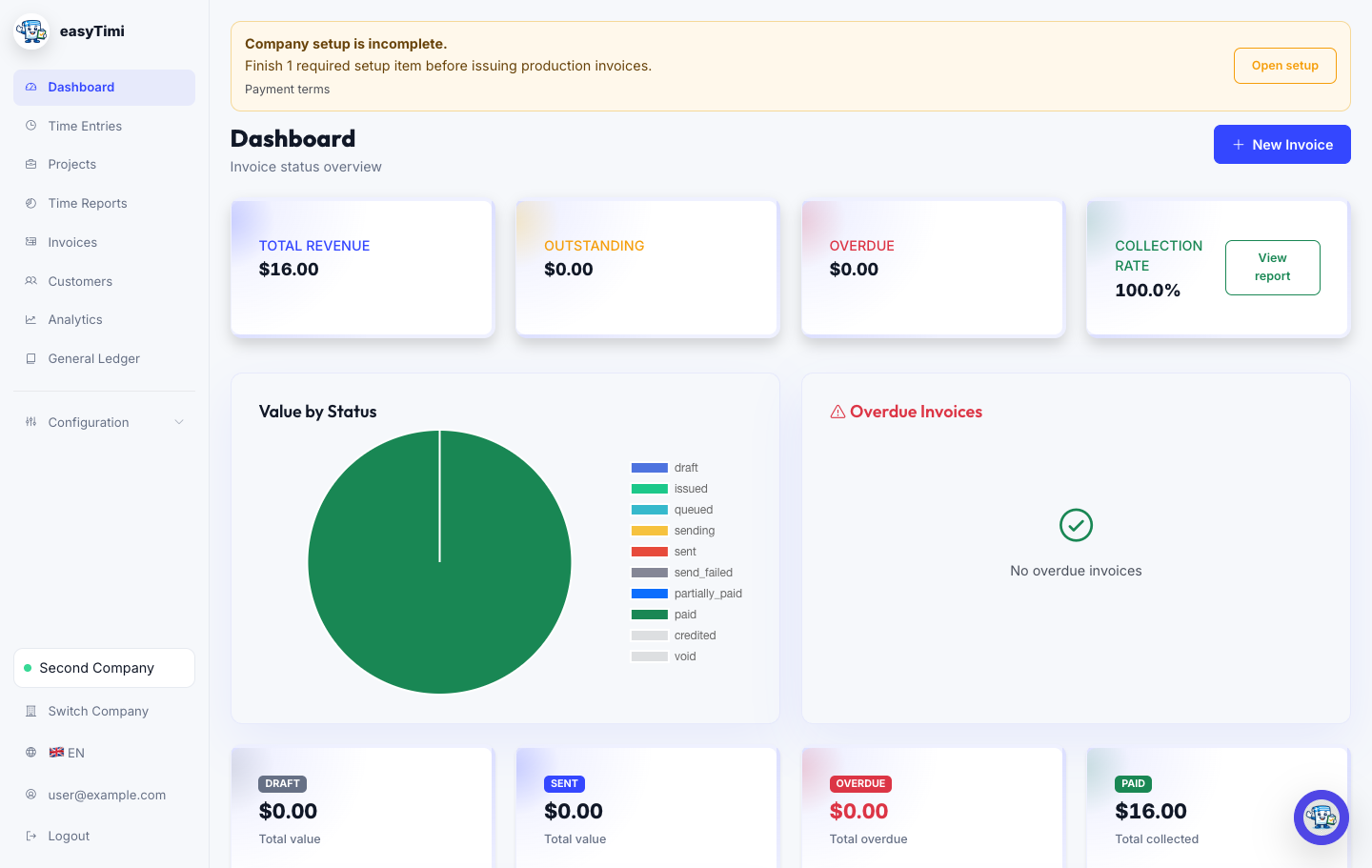
easyTimi dashboard showing revenue, invoice status, overdue invoices, and recent activity

When to use this

Use this section after an invoice has been sent, when a payment arrives, when a customer needs a reminder, or when an online payment session must be refreshed.

Workflow

  1. Open the invoice and check the current outstanding balance.
  2. Record manual payments when funds arrive, including amount, date, currency, and reference.
  3. Create or reissue Stripe payment sessions only when online payments are configured and the balance is current.
  4. Use payment reminders when an invoice is overdue and the customer relationship allows automated follow-up.
  5. Review the Dashboard to monitor overdue, paid, and outstanding amounts.

Check before moving on

  • Payment currency and amount match the invoice or partial payment agreement.
  • Manual payments are recorded before sending another payment link.
  • Old payment sessions are expired when the balance changes.
  • Reminder wording and timing are appropriate for the customer.

Common fixes

  • If a customer says they paid, check bank/Stripe records, payment reference, amount, and currency.
  • If a payment link is stale, expire the old session and reissue after confirming the remaining balance.

Related guides

Set up Stripe payments

Connect Stripe, create payment sessions, share payment links, and understand where payment status appears.

Read the Stripe guide

Track delivery and reminders

Use invoice activity, delivery attempts, reminder events, and payment state to understand what happened after sending.

Open app after sign in

Time

Time tracking and billable work

Capture billable hours, review project work, and turn approved time into invoice lines.
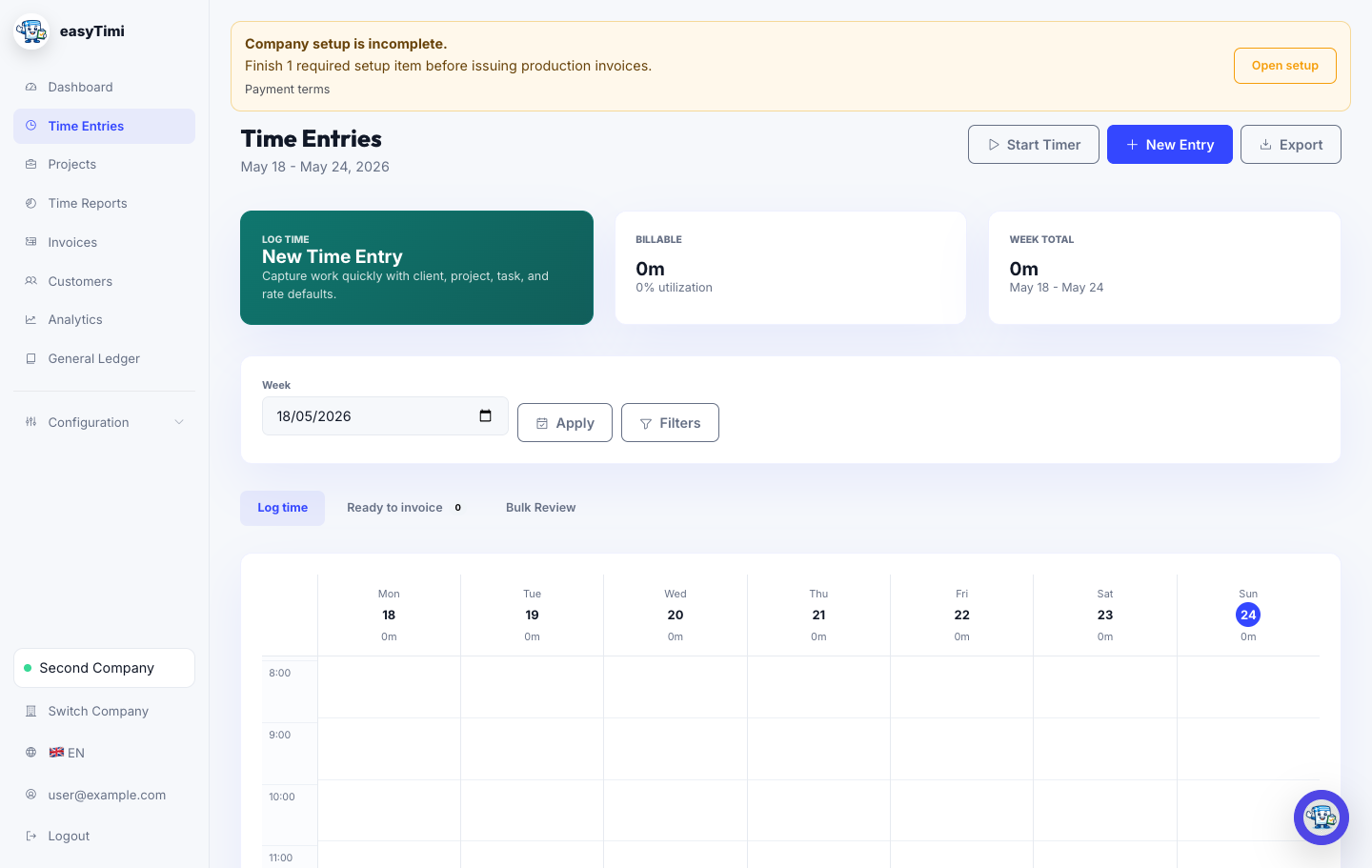
easyTimi time entries screen with weekly time records, filters, and invoice actions
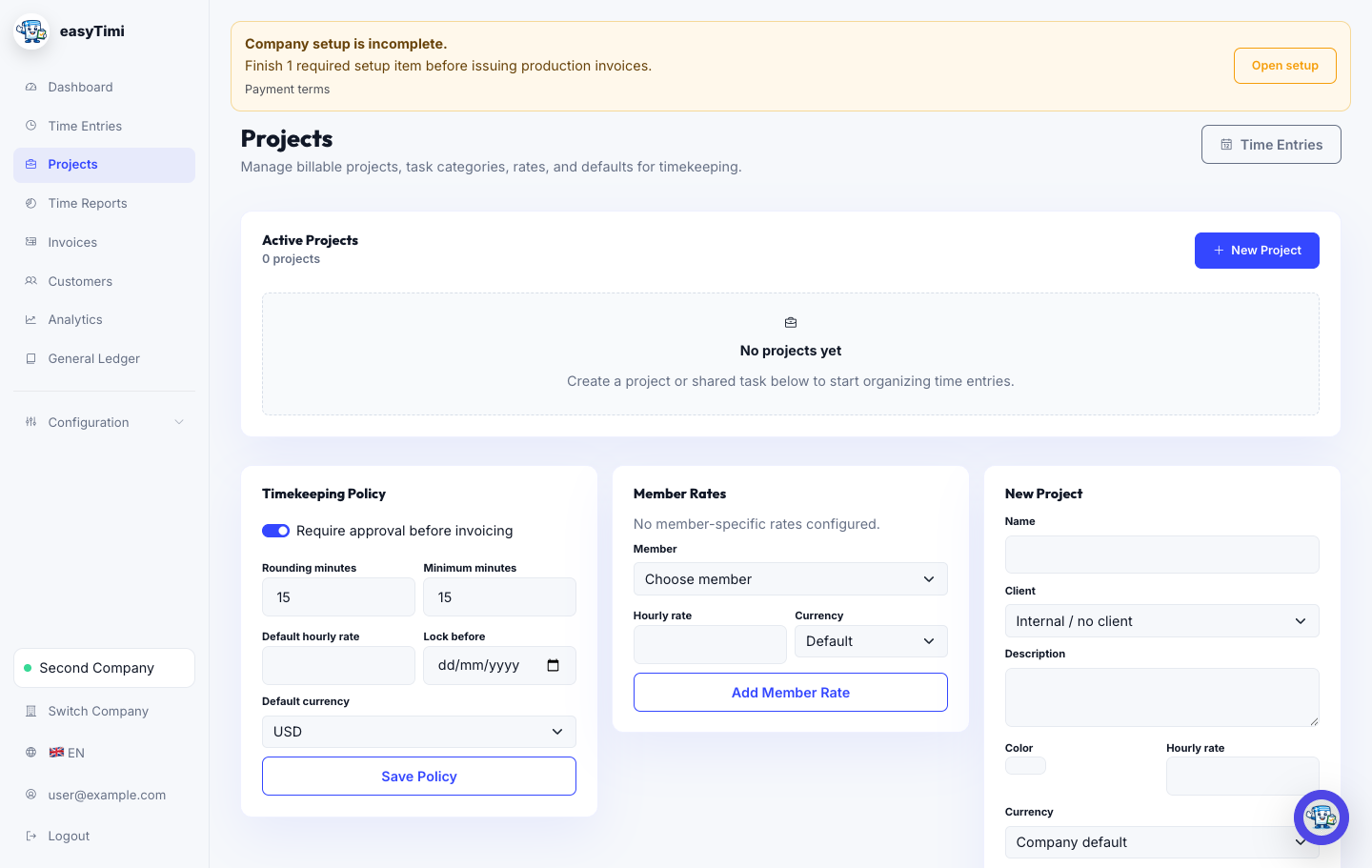
easyTimi projects screen with timekeeping policy, rates, and project setup

When to use this

Use this section when you bill from hours, need weekly timesheets, manage project rates, or create invoices from approved work.

Workflow

  1. Create projects and task categories for recurring work.
  2. Log work from Time Entries using a timer or manual entry.
  3. Assign customer, project, task, date, duration, rate, and notes.
  4. Use filters only when review needs more detail; keep the week navigator visible for everyday logging.
  5. Review ready-to-invoice and bulk-review tabs before creating invoices from time.
  6. Use Time Reports to confirm totals or export time data.

Check before moving on

  • The active week is correct.
  • Entries have the right customer, project, duration, and billable status.
  • Project rates, member rates, rounding, and approval policy are correct.
  • Entries are approved or ready before invoice creation.

Common fixes

  • If entries do not appear, check week, filters, customer, project, and billable status.
  • If invoice lines look wrong, review project rates and rounding rules before recreating the invoice.

Related guides

Track weekly work

Use time entries, project filters, timers, notes, and status changes to keep billable work ready for review.

Open time entries after sign in

Report and invoice time

Review project totals, export reports, and create invoices from approved billable entries when the work is ready.

Open time reports after sign in

Intl

International and compliance-aware billing

Prepare the facts that make cross-border invoices easier to review, send, and explain.
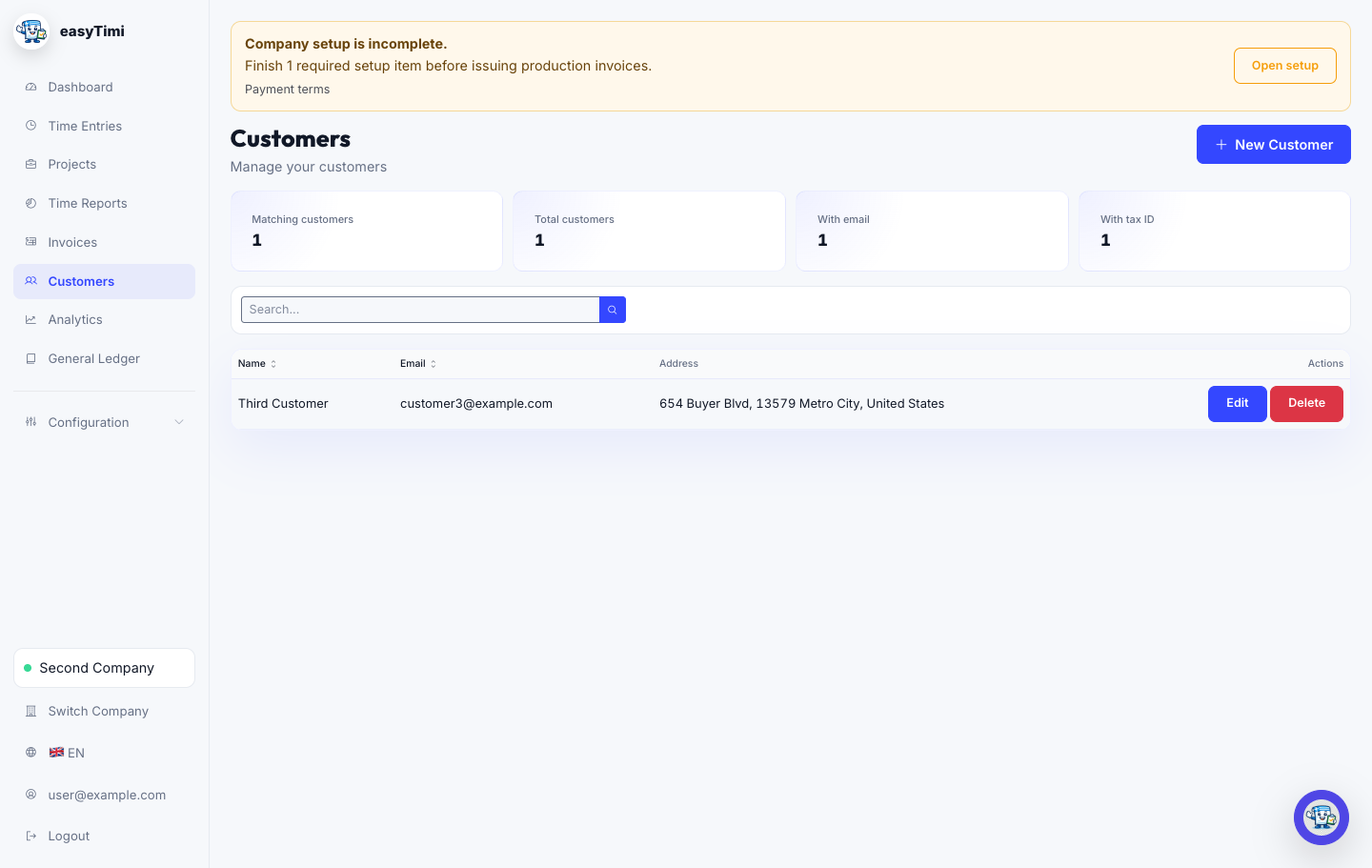
easyTimi customers screen showing customer records used for invoice and tax details

When to use this

Use this section before invoicing across borders, using another currency, applying reverse charge, or documenting tax treatment for accountant review.

Workflow

  1. Confirm the customer country, legal name, tax ID, and buyer reference.
  2. Choose invoice currency and understand how it relates to company base currency.
  3. Select tax treatment based on customer location, supply type, and accountant guidance.
  4. Record tax reason or supporting wording where the invoice needs context.
  5. Keep evidence such as VAT ID validation, export context, exemption basis, or rate source outside the invoice when required.

Check before moving on

  • Customer country and tax ID are current.
  • Currency expectations are agreed with the customer.
  • Tax labels and notes do not overclaim compliance status.
  • Accountant-approved wording is used for reverse charge, exemption, or no-tax lines.

Common fixes

  • If the wrong tax presets appear, check company country, customer country, and customer tax fields.
  • If a customer rejects wording, update customer references or tax notes before sending a corrected document.

Related guides

Invoice in another currency

Choose invoice currency, record exchange-rate context, and understand the difference between invoice and base currency.

Read the currency guide

VAT, reverse charge, and tax labels

Gather customer location, VAT IDs, supply type, and exemption wording before selecting invoice tax treatment.

Read the tax-label guide

eInv

Country eInvoicing readiness

Understand the practical setup needed before sending country-specific electronic invoices.
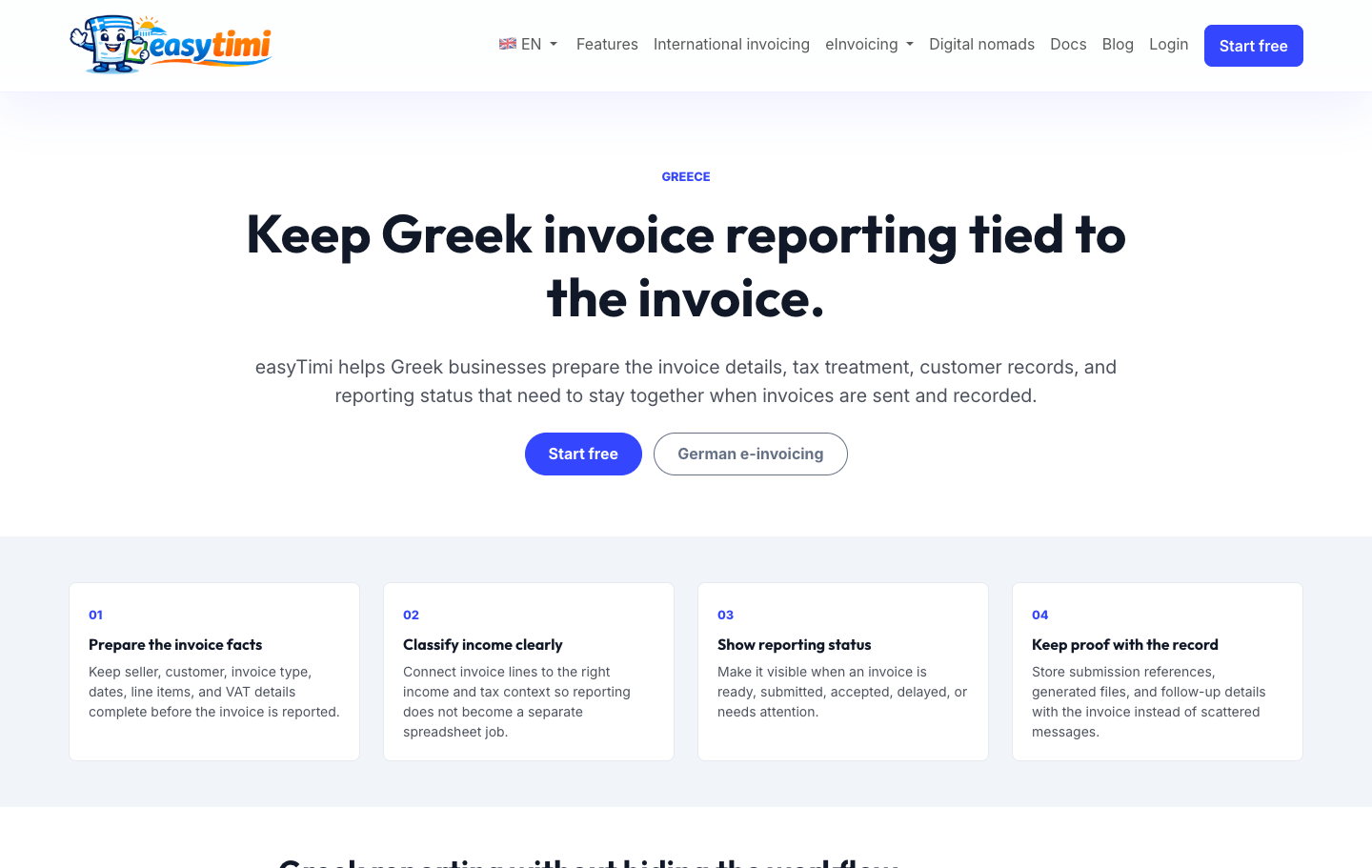
easyTimi Greek myDATA public page explaining electronic invoice reporting workflow

When to use this

Use this section when a company prepares Germany, Belgium, or Greece electronic invoicing workflows, generated artifacts, validation reports, or provider-backed submissions.

Workflow

  1. Complete seller legal identity and country-specific company settings.
  2. Confirm buyer identifiers, tax fields, and routing details.
  3. Generate supported artifacts such as XML where the adapter provides them.
  4. Validate generated artifacts before relying on them for delivery or submission.
  5. Submit or send through the configured provider only when the company setup is ready.
  6. Keep validation reports, submission status, and accountant review notes with the invoice record.

Check before moving on

  • Adapter support is enabled for the company and plan.
  • Credentials and participant identifiers belong to the active company.
  • Invoice type, tax treatment, and classifications match the country workflow.
  • Validation and submission status are checked before assuming acceptance.

Common fixes

  • If validation fails, review seller identity, buyer identity, tax treatment, invoice type, and the validation report.
  • If submission status is unclear, refresh status and check provider or government portal evidence where available.

Related guides

German business invoices

Prepare for German e-invoice expectations with a workflow you can understand before implementation details matter.

Read the Germany guide

Greek myDATA setup

Obtain AADE REST API credentials, store them per company, and prepare the first invoice submission.

Read the myDATA setup guide

Troubleshooting

Start with the first visible symptom

Most billing issues are faster to solve when you know where to look first.

These checks mirror the manual and help you narrow the problem before contacting support or asking your accountant to review an invoice.

SETUP

Cannot issue or send

Open the setup banner and review legal identity, payment terms, email delivery, and required country-specific fields.

INVOICE

Totals look wrong

Check quantity, unit price, currency, tax preset, tax rate, service period, and imported time entries.

PAID

Payment is missing

Confirm bank or Stripe records, payment reference, amount, currency, partial payments, and stale payment sessions.

TIME

Time is missing

Check active week, filters, customer, project, billable status, approval state, and whether entries were already invoiced.

EINV

Validation failed

Review seller identity, buyer identity, tax treatment, invoice type, credentials, participant identifiers, and the validation report.

Roadmap

Next docs to add

The manual will keep expanding around the workflows that most often need evidence, accountant review, or support hand-off.

ACCOUNTING

Month-end review

Ledger checks, reconciliation exports, write-off policy, and accountant-ready exception reports.

API

Mobile and API workflows

Token setup, device registration, sync watermarks, idempotency, and mobile troubleshooting examples.

OPS

Operational runbooks

Provider outages, failed e-invoice submissions, payment reconciliation drift, and support escalation paths.

Need the app behind the documentation?

Start free with professional invoices, customer records, payment visibility, and international-ready billing details.